Giving the agent a database
Add database credentials, explain what the agent may change, and share its proposed tables with your database administrator.
Your database login's permissions are the agent's scope. Give it a login with the rights you intend it to use, then tell it in the conversation how you want to work with that database. You can do this entirely in Amira, without a terminal.
Add the credentials#
Open your Project → Settings → Environment. Add the connection details as plain environment variables: a name and a value for each detail your application needs. Your database administrator can supply the values; the agent can tell you which variable names to use.
Choose Add variable, enter its Name and Value, and save it. Keep passwords and connection strings marked as Secret so their values stay hidden after saving.
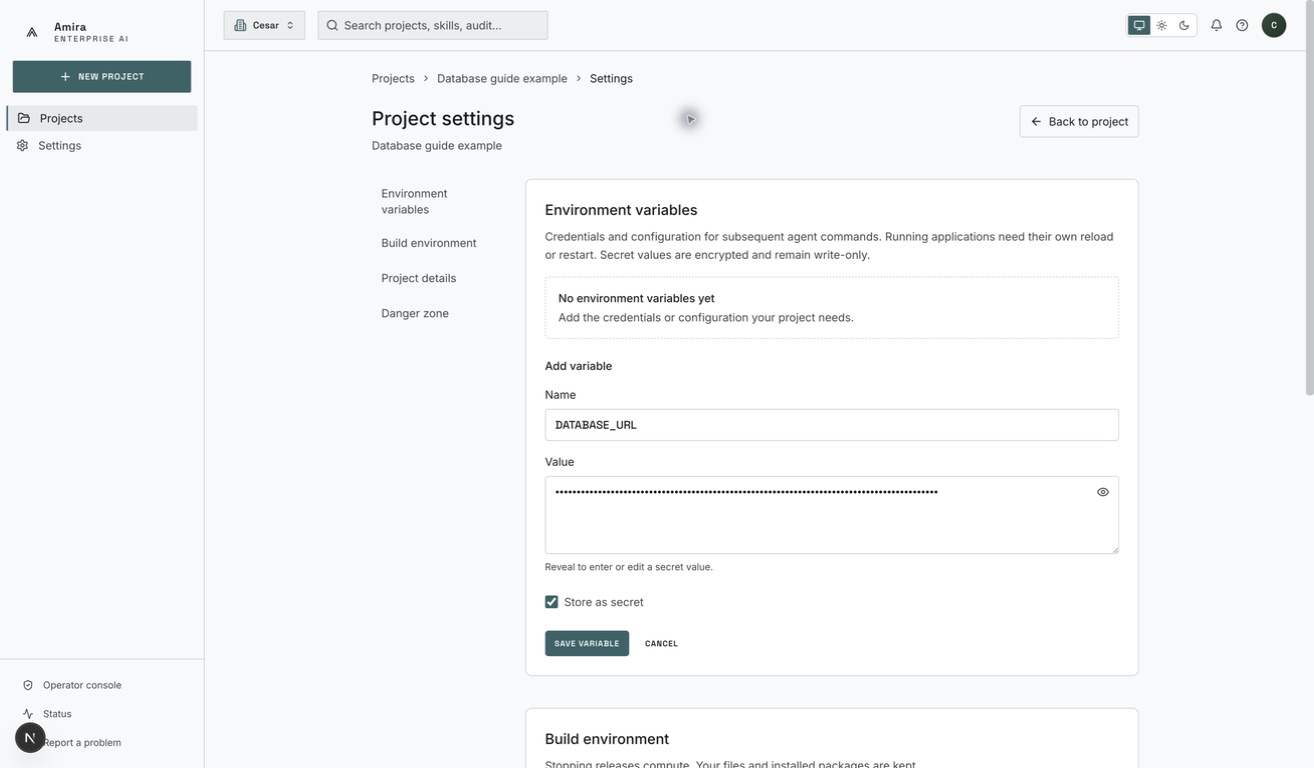
Example project: enter your own administrator-supplied value. The screenshot uses a nonfunctional example, with its value hidden. View setup screenshot at full size.
Save them there, never in the repository. In conversation, tell the agent
the variable names, not their secret values. A name such as DATABASE_URL is
an example, not a required Amira setting.
Choose the login's permissions#
A database your project owns#
If you want the agent to manage the database's structure, give it a login with permission to create and change tables and schemas, the groups that contain tables. Giving those rights means you intend the agent to use them. It can create the tables the application needs and update them as the application changes.
A shared or administered database#
Use a login limited to reading and writing data when someone else manages the tables. The database enforces that limit, even if the agent tries to create or change a table. Adding credentials does not grant extra rights.
Tell the agent about that limit and ask it to save the data model — the proposed tables, fields and relationships — and the database scripts as files. Your administrator may call those scripts DDL. Review the model and confirm it in the conversation. Someone with the necessary database rights runs the agreed scripts, then you tell the agent what is ready so it can continue against the confirmed model.
A script saved as a file does not mean its tables have been created. Ask the agent to distinguish what it has proposed from what has actually been applied to the database.
Tell the agent how to proceed#
When you add a credential, say which database it connects to, which environment variable holds it, and whether the agent may change the tables. For a shared database, you can say:
The shared database credentials are in DATABASE_URL in Environment; this login can only read and write data, so save the proposed tables and relationships and the scripts to create them as files for our database administrator, wait for my confirmation of the model, and continue when I tell you the agreed tables are ready.
Your message guides the work; the login's permissions enforce its limits.
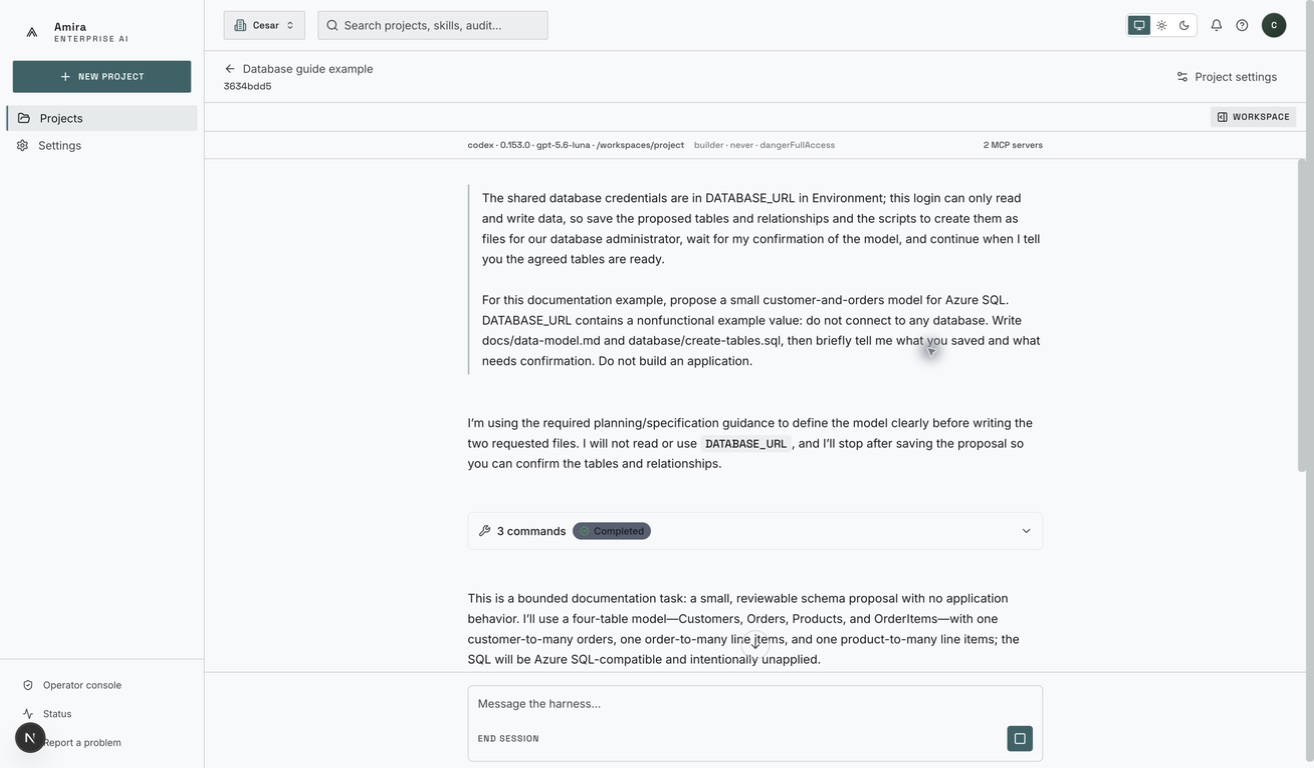
A real conversation in an example project. The credential is nonfunctional; the agent is asked to write files without connecting to a database. View conversation screenshot at full size.
Find and download the files#
Open the session's Files pane. Ask the agent for the filenames and folders it used, then expand those folders and select the model or script to read it. Open the three-dot menu beside the file and choose Download file to save a copy and share it with your database administrator. For a folder, choose Download folder as ZIP.
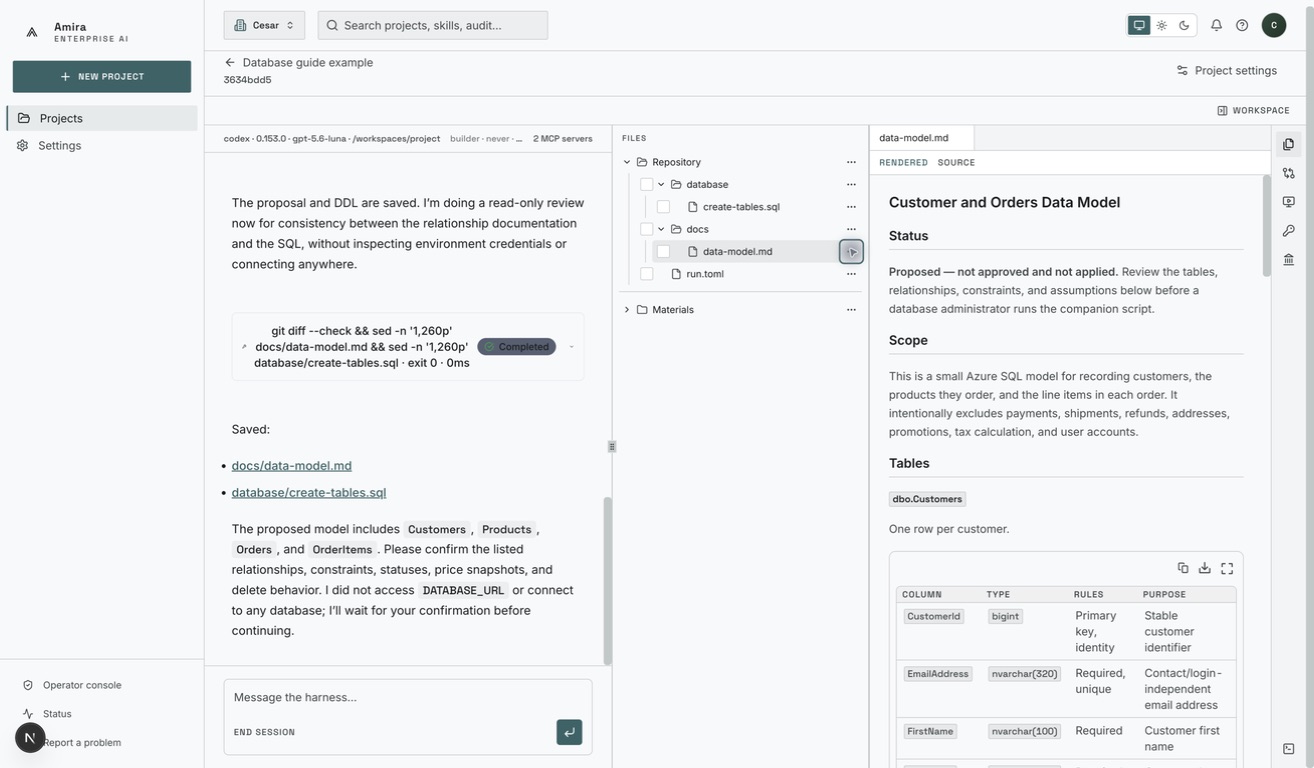
The example model is marked as proposed and not applied. Use the three dots beside its filename to download it. View Files screenshot at full size.
The agent may include links to file paths inside its workspace in a reply. Those links do not open in a browser. Use the path to locate the file in the Files pane instead.